Pacing: Cut to the useful moment
When a short video feels exhausting or amateurish, the problem is rarely clip duration alone—it is unearned duration. A four-second shot of a hand carefully threading a needle feels brisk because the viewer is waiting for the thread to pass through the eye. A one-second shot of that same hand resting on the table after the task finishes feels sluggish because the visual question has already been answered.
Good pacing is not about cutting every 0.7 seconds to mimic hyperactive feeds. It is about trimming away the frames before an action commits and the frames after an action resolves, so every remaining moment carries forward momentum.
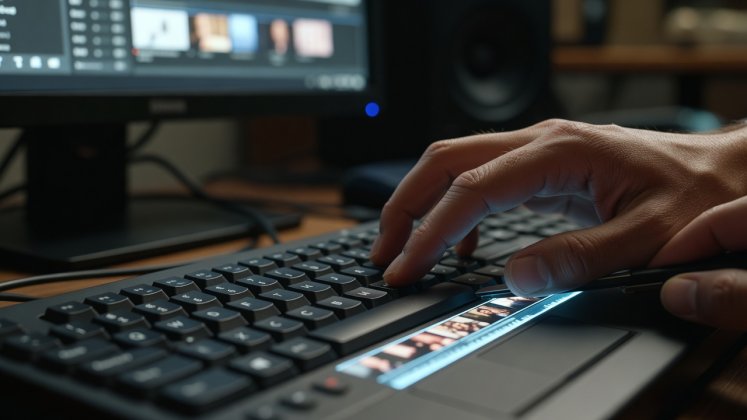
1. Diagnose the hesitation frame before touching shortcuts
Before reaching for a razor key, watch your raw clip at normal 1x playback speed—not scrubbed at double speed—and observe where your own eyes lose interest. Almost every unscripted camera take contains three layers of fat:
- Pre-action rehearsal: The presenter looks at the lens, parts their lips, inhales, and shifts posture before speaking the first word.
- Mid-phrase vocal crutches: Drawn-out vowels ("soooo"), lip smacks, or repeated clauses when searching for an adjective.
- Post-action linger: The speaker finishes a sentence and stares at the camera for twelve frames before reaching to stop recording, or a demonstration shot stays on screen after the tool has already been set down.
Principle first: Cut on the onset of intention. In dialogue, place your In-point two frames before the first vocal consonant registers on the waveform, leaving only a natural micro-breath if the clip starts a brand-new emotional thought. On the Out-point, cut immediately as the final consonant closes, before the jaw relaxes.
Software execution: Instead of selecting the razor blade tool, clicking, switching back to the selection arrow, clicking the gap, and pressing Delete (five separate actions), use Ripple Trim Previous/Next Edit to Playhead. In Adobe Premiere Pro this defaults to `Q` (trim start to playhead) and `W` (trim end to playhead); in DaVinci Resolve use `Ctrl+Shift+[` and `Ctrl+Shift+]` (or `Cmd+Shift+[` / `]` on macOS); in Final Cut Pro use `Option+[` and `Option+]`. One keystroke slices the tail and pulls the rest of the timeline flush.
2. Cut on action to make angle changes invisible
Viewers notice hard cuts when their eyes have nothing moving to track across the splice. As film editor Walter Murch explained in his hierarchy of cutting priorities, emotion and story sit at the top, followed closely by rhythm and eye-trace—the predictable location and movement of the viewer's focus from one frame to the next.
When cutting from a wide shot of a chef chopping herbs to a tight macro shot of the knife blade, an inexperienced editor often waits for the chef to finish a chop in the wide shot, then starts the close-up on the next chop. That produces a double pause.
-
Find the apex of acceleration in Shot A
Scrub forward frame by frame until the hand, tool, or head turn reaches maximum motion blur—usually halfway through the gesture. Mark your Out-point right there.
-
Match the spatial vector in Shot B
In the incoming close-up, locate the exact midpoint of the downward stroke and shave away the wind-up frames. When played at full speed, the eye rides the downward motion across the focal-length jump without registering the cut.
-
Shave two extra frames on wide-to-tight jumps
Because motion appears faster in a tight telephoto frame than in a wide frame, trimming two additional frames out of the middle of the action prevents the movement from feeling repeated.
3. Separate audio edits from video edits (J-Cuts and L-Cuts)
When every clip in a vertical video has its audio and video locked to the exact same frame boundary, the sequence feels robotic—like a slide projector clicking from card to card. Unlinking or expanding your audio/video edit points lets sound bridge the visual seam.
| Edit Type | Visible Problem Solved | Timeline Geometry | Typical Offset |
|---|---|---|---|
| J-Cut (Audio Leads) | Incoming scene change feels sudden or unmotivated | Audio of Clip B begins while Video of Clip A is still on screen | -4 to -12 frames |
| L-Cut (Video Leads) | Speaker's final point needs visual reaction or B-roll payoff | Audio of Clip A continues under the opening frames of Video B | +6 to +18 frames |
| Hard Straight Cut | Comedic timing, sudden shock reveal, or percussive beat hit | Audio and Video cut on the exact same frame boundary | 0 frames |
4. Build transitions in the camera frame, not the effects bin
Preset zoom blurs, spinning prisms, and glitch overlays quickly date a short video because they call attention to the editing software rather than the subject. When a sequence genuinely needs a smooth transition between two separate steps or locations, use physical motion already present in the footage:
- Foreground Whip / Object Wipe: Let a dark sleeve, a passing doorway frame, or a held product sweep across the lens at the tail of Shot A, filling the frame for three frames. Start Shot B as a similarly dark shape clears the lens moving in the same screen direction (left-to-right or top-to-bottom).
- Match Shape / Graphic Cut: Place the circular rim of a coffee cup in the lower third of Shot A, then cut directly to a circular camera lens or bicycle wheel occupying the exact same screen coordinates in Shot B.
- Speed Ramp Bridge: If two shots share a directional camera pan, keyframe the last eight frames of Shot A from 100% speed to 350% speed with optical flow or frame blending enabled, and keyframe the first eight frames of Shot B decelerating from 350% back to 100%.
Once your middle cuts flow, check your first three seconds
Even the cleanest ripple trims and J-cuts won't save a clip whose opening shot fails to establish a clear visual hook.